MetaTrader 5
This guide will explain the process of installing MetaTrader on a Windows system.
IMPORTANT
MetaTrader must be installed inside your VPS, not on your local computer!
MetaTrader 5
- Download MT5 Installer
- Your broker will provide a MetaTrader 5 download.
1. Run the installer
- Once the installer is downloaded, locate the file (usually in your Downloads folder) and double-click to run it.
- If prompted by User Account Control (UAC), click "Yes" to allow the installer to make changes to your system.

2. (Optionally) Choose installation location
- Access the installation settings by clicking "Settings".
- Specify the directory where you want MetaTrader 5 to be installed. The default location is usually fine for most users.
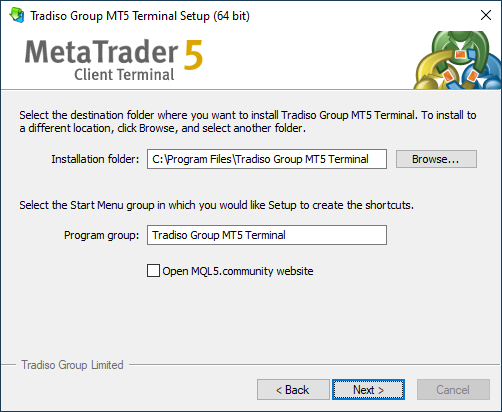
3. Start installation
- Click "Next" to begin the installation process.
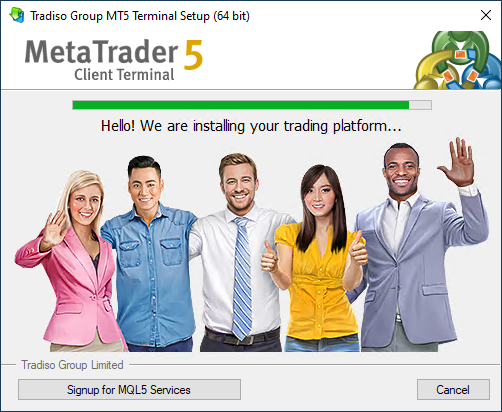
4. Wait for installation to complete
- The installer will now extract and install MetaTrader 4 on your computer. This may take a few moments.
- Once completed, MT5 will automatically open and you should see the following screen
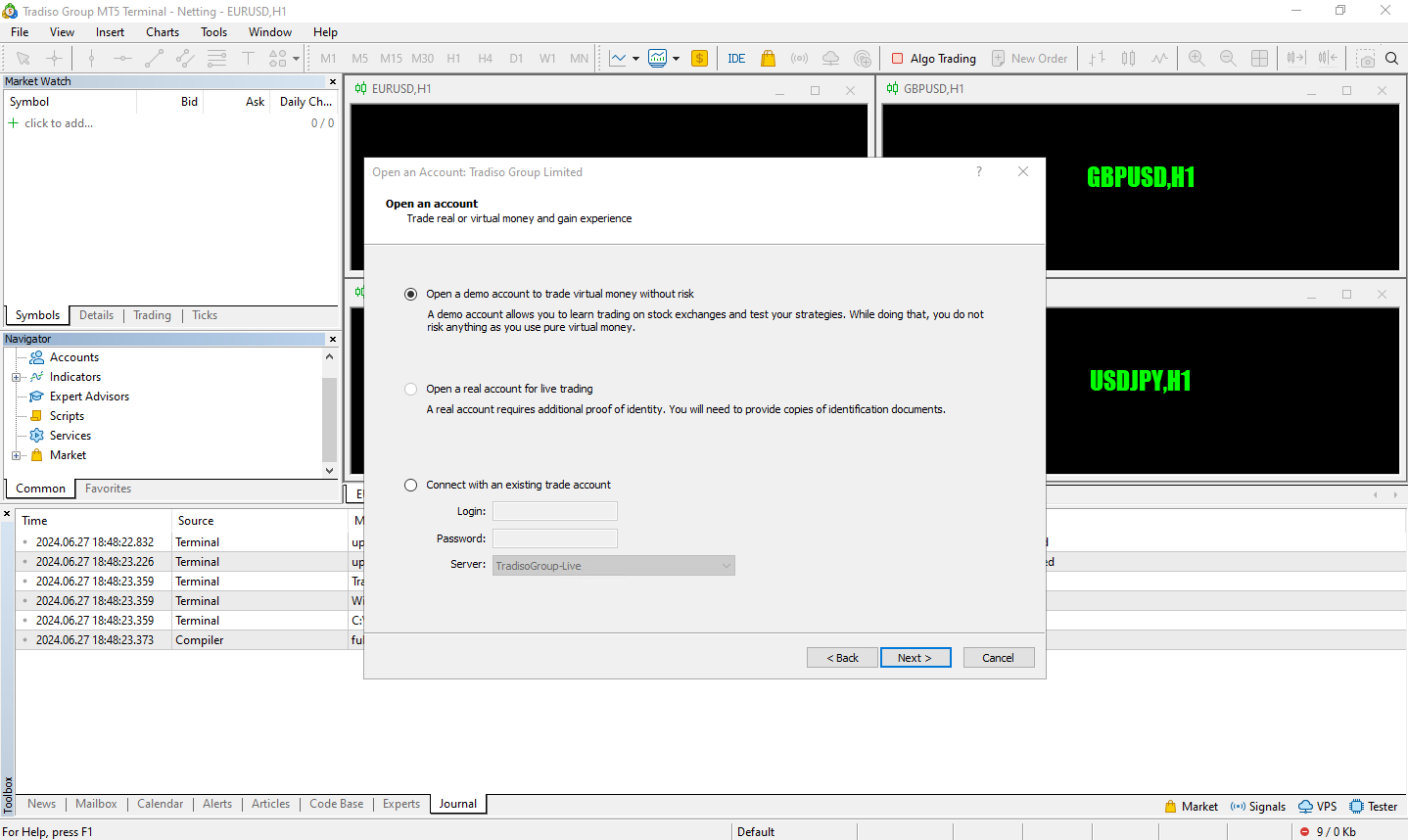
Setup checklist
Congratulations, you have successfully installed MetaTrader 5!
✅ MT5 account number
✅ VPS connection
✅ MetaTrader 5 platform
❌ Trading account login